USB Wired Headset: Noise-Canceling Mic + In-Line Controls
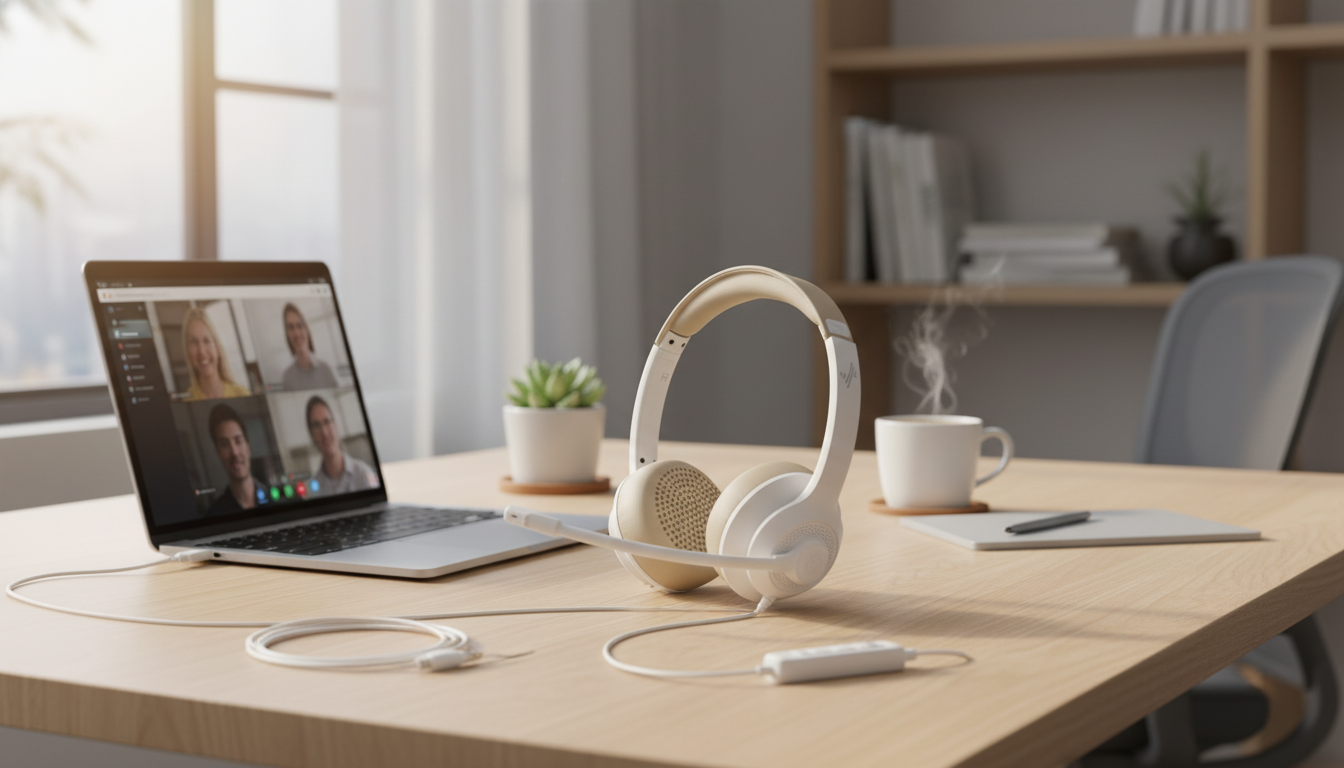
USB Wired Headset with Noise Cancelling Mic & In-line Controls for Office & Home
Clear calls and dependable audio matter most when meetings stack up and background noise is unavoidable. A USB wired headset with a noise cancelling microphone and simple in-line controls helps keep speech intelligible, reduces distractions, and stays consistent across workstations—whether used at a desk, a shared office, or a home setup.
If you want a straightforward, plug-and-go option, see the USB Wired Headset with Noise Cancelling Mic & In-line Controls for Office & Home—a practical choice for daily calls, training sessions, and long work blocks where reliability matters.
What This Headset Is Built For
- Day-to-day voice and video calls where consistent microphone clarity is more important than booming bass
- Focused work blocks where a stable wired connection avoids battery anxiety and wireless dropouts
- Quick call handling through in-line controls to mute, adjust volume, and manage audio without searching for on-screen buttons
- Hybrid schedules that move between office docking setups and home laptops
USB headsets are especially useful in shared environments: you plug in, select the device once, and get predictable behavior across most modern calling apps. For roles like customer support, scheduling, remote instruction, or team standups, the “it just works” factor can be more valuable than extra features you never touch.
Key Features That Improve Call Quality
- Noise cancelling microphone designed to reduce pickup of common room sounds (keyboard clicks, HVAC hum, nearby conversation) so speech stays forward and clear
- USB connection for stable digital audio and reduced variability compared with some analog headset ports
- In-line controls for fast mute and volume changes during calls, training sessions, and webinars
- Wired reliability for roles that require long calls, consistent uptime, and predictable performance
Quick feature checklist
| Feature | Why it matters at work/home | What to test on day one |
|---|---|---|
| Noise cancelling mic | Reduces background pickup so the listener hears more voice and less room noise | Record a 10-second sample while typing to compare before/after placement |
| USB wired connection | Stable audio path; no charging; fewer connection steps | Plug into a different USB port and confirm the mic stays selected |
| In-line controls | Faster mute/volume changes without interrupting a conversation | Toggle mute on a call and confirm the app shows muted state |
| Comfort for long sessions | Prevents fatigue during back-to-back meetings | Wear for 30 minutes and adjust fit to avoid pressure points |
In-line Controls: Practical Ways They Help
- Mute on demand during unexpected interruptions (doorbell, coworker question, pet noise)
- Quick volume adjustments when switching between soft-spoken and loud participants
- More consistent meeting etiquette by minimizing accidental hot-mic moments
- Helpful for customer support, remote training, telehealth check-ins, and classroom-style calls
On busy days, the fastest mute button is the one you can feel without hunting through menus. In-line controls reduce the friction of managing audio in the moment, which often leads to calmer calls—especially when you’re taking notes, screen sharing, or handling multiple apps at once.
Setup and Compatibility Tips
- Connect via USB directly to the computer for the most reliable power and audio; avoid unstable hubs when possible
- Select the headset as both the input (microphone) and output (speaker) device in system sound settings and in the calling app
- Run a short test call to confirm the correct mic is active and levels are appropriate
- If available in the calling platform, disable aggressive software noise suppression first, then re-enable only if needed to avoid over-processing
Most meeting platforms support standard USB audio devices. If audio doesn’t sound right, the fix is often simply selecting the correct device in the app’s settings. For quick references, Microsoft Teams audio settings are documented here: Microsoft Support: Manage audio settings in Microsoft Teams. For Zoom, a quick pre-meeting check can prevent last-minute scrambling: Zoom Support: Testing audio before a meeting.
Getting the Best Microphone Performance
- Position the microphone close to the corner of the mouth (not directly in front) to reduce plosives and breathing noise
- Keep the mic consistent: frequent repositioning can cause level swings and uneven tone
- Reduce room echo when possible—soft furnishings, curtains, and rugs improve clarity even with a noise cancelling mic
- Aim for steady speaking volume; shouting can clip the signal, while whispering may trigger noise gating
A noise cancelling microphone can’t fix every acoustic problem, but good placement gets you most of the way there. If teammates say you sound “far away,” don’t immediately raise the input gain—move the mic closer first, then fine-tune levels so your voice is full without distortion.
Comfort and Daily Use in Office and Home Spaces
Common Issues and Quick Fixes
Recommended In-Stock Picks
- USB Wired Headset with Noise Cancelling Mic & In-line Controls for Office & Home ($28.67) — a dependable wired option for clear speech, steady connection, and quick in-call adjustments.
- Men’s Genuine Leather Cowboy Belt with Copper Buckle for Jeans ($72.51) — a durable everyday accessory that fits neatly into office-to-after-hours routines.
FAQ
Will a USB wired headset work with Teams, Zoom, and Google Meet?
In most cases, yes—these platforms commonly support standard USB audio devices. Select the headset as both your microphone and speaker in the app settings, then run a quick test call to confirm levels.
Does a noise cancelling microphone remove all background noise?
No. It typically reduces common steady or nearby noises, but sudden sounds and room echo can still come through. Mic placement and improving the room’s acoustics will make the biggest difference in clarity.
What do in-line controls typically do during calls?
They usually handle functions like mute and volume so you can adjust audio without clicking on-screen controls. Specific behavior can vary by operating system and meeting app, so it’s worth verifying in a quick test meeting.















Leave a comment