2.4G Wireless Gamepad for PC & Xbox with 6-Axis Rumble
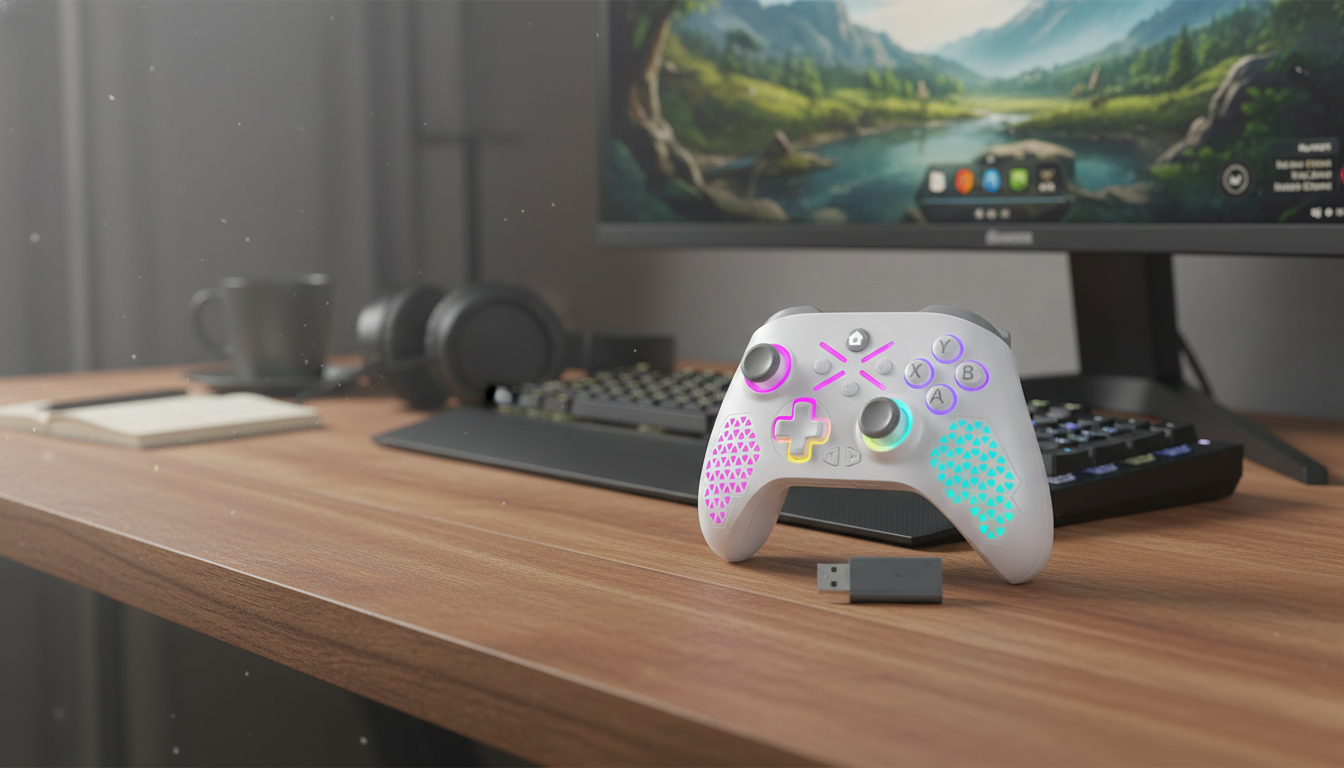
Wireless Gamepad Controller 2.4G with 6-Axis Vibration for Xbox & PC
A responsive wireless controller can make the difference between “almost” and “nailed it,” especially in racing, shooters, and platformers. This 2.4G wireless gamepad is built for Xbox-style play on PC and compatible Xbox setups, pairing stable low-latency input with 6-axis vibration feedback for more immersive sessions. If you want analog precision, comfortable ergonomics, and room-to-move freedom, this controller is designed to keep inputs consistent while adding tactile feedback that makes gameplay feel more “present.”
What This Controller Is Best For
Not every controller fits every style, but this one shines in the situations where an Xbox-style layout and wireless freedom are the priorities. It’s a practical pick for living-room gaming, desk setups that feel cramped with a cable, and games where vibration cues add meaningful information.
- PC gaming with an Xbox-style layout for familiar button placement and comfortable ergonomics
- Action, racing, sports, and adventure titles where vibration feedback improves timing and impact awareness
- Living-room play from the couch using a 2.4G wireless connection rather than staying tethered to a desk
- Players who prefer a dedicated gamepad over keyboard/mouse for analog movement and triggers
Key Features That Matter in Real Gameplay
Spec sheets are useful, but what matters is how the controller behaves mid-match or mid-lap. This gamepad focuses on the fundamentals that usually translate into better day-to-day play: reliable wireless input, a familiar control scheme, and feedback you can feel.
- 2.4G wireless connection designed for consistent input and freedom of movement
- 6-axis vibration feedback to reinforce in-game events like recoil, collisions, and terrain changes
- Console-style control layout aimed at quick adaptation for Xbox and PC players
- Comfort-focused form factor that supports longer sessions with a stable two-handed grip
For genres like racing and shooters, small improvements in control confidence add up. Smooth stick movement helps with micro-adjustments, and triggers feel more natural for accelerating, braking, aiming, or feathering inputs where on/off keys can feel too harsh.
Compatibility and Setup Basics
Most players want a controller that behaves like a simple plug-in accessory—connect the receiver, power the controller, and play. That’s the typical experience on PC, with a few common caveats depending on the game and how it handles controller standards.
- PC setup is typically plug-and-play when the receiver is connected; some games may require selecting controller input in settings
- Many Windows titles expect XInput-style controllers; if a game only supports DirectInput, button mapping may be needed inside the game
- If input feels delayed or inconsistent, try a different USB port, reduce nearby wireless interference, and keep a clear path between receiver and controller
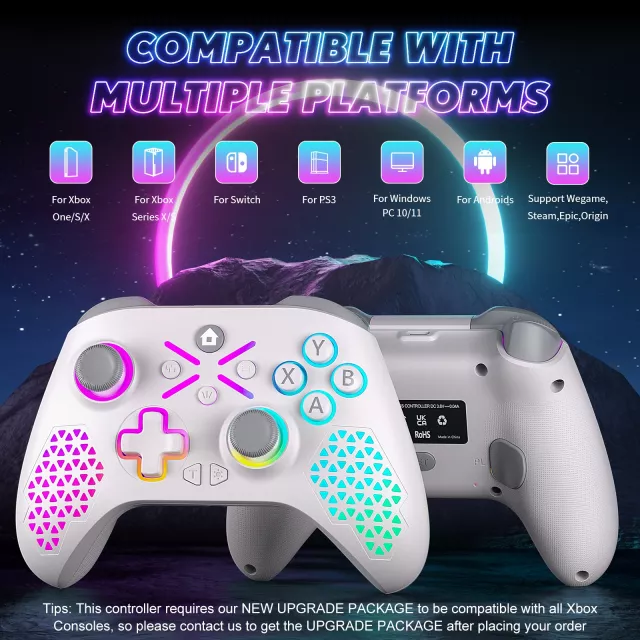
- For Xbox environments, confirm the supported console/connection method shown on the product page before purchase and follow the pairing steps included with the controller
Quick Setup Checklist (PC)
| Step | What to do | If it doesn’t work |
|---|---|---|
| 1 | Connect the 2.4G receiver to a USB port | Try a rear USB port on desktops; avoid unpowered hubs |
| 2 | Power on the controller | Charge/replace batteries if applicable; confirm power indicator |
| 3 | Open a game or controller test panel | Check Windows controller settings and in-game input device selection |
| 4 | Adjust vibration and sensitivity in-game | Update game settings; reduce conflicts with other connected controllers |
For additional Windows and controller troubleshooting guidance, Microsoft’s official resources are a helpful reference: Microsoft Support: Controller help and Microsoft Support: Set up and troubleshoot game controllers in Windows. For game-specific controller quirks, PCGamingWiki’s controller glossary is a strong community-maintained starting point.
How 6-Axis Vibration Changes the Feel
Vibration is sometimes treated like a novelty, but the best implementations act like extra sensory data. When tuned well, it helps you “read” what’s happening without diverting your eyes from the action.
- More nuanced feedback can help with driving grip changes, weapon recoil patterns, and impact cues
- Better situational awareness in fast games by signaling damage, hits, or environmental effects
- Adjustable for different play styles; lower it for focus, raise it for immersion
- Power and comfort management; if vibration feels too strong or drains power faster, lower the in-game intensity first
Comfort, Layout, and Daily Use
At-a-Glance Specs and Purchase Details
Product Snapshot
| Detail | Value |
|---|---|
| Wireless type | 2.4G |
| Feedback | 6-axis vibration |
| Platforms | Xbox & PC (see product page for exact compatibility) |
| Price | 44.51 USD |
| Stock status | In stock |
In stock now: Wireless Gamepad Controller 2.4G with 6-Axis Vibration for Xbox & PC
More In-Stock Picks
- Men’s Genuine Leather Cowboy Belt with Copper Buckle for Jeans
- Large Dog Slicker Brush & Comb Set for Doodles, Poodles and Long Coats
FAQ
Will this work on Windows PC without extra software?
In many cases, yes—connecting the 2.4G receiver and powering on the controller is typically enough for Windows to recognize it. Some games may require selecting “controller” as the input device, and older titles may need in-game remapping if they don’t support XInput-style controllers.
How can vibration be adjusted or turned off?
Most games include a vibration toggle or intensity slider in the controller settings menu. If you don’t see an option, check the game’s general settings for accessibility or control preferences and reduce vibration there when available.
What should be checked if the controller disconnects or lags?
Try a different USB port (preferably a rear port on desktops), avoid unpowered hubs, and reduce nearby 2.4G interference by moving other wireless devices away. Also keep the receiver closer with a clear line to the controller, re-pair if needed, and confirm the controller has sufficient charge or fresh batteries.














Leave a comment