2.4 GHz Ergonomic Mouse for Mac & iPad: Setup Tips
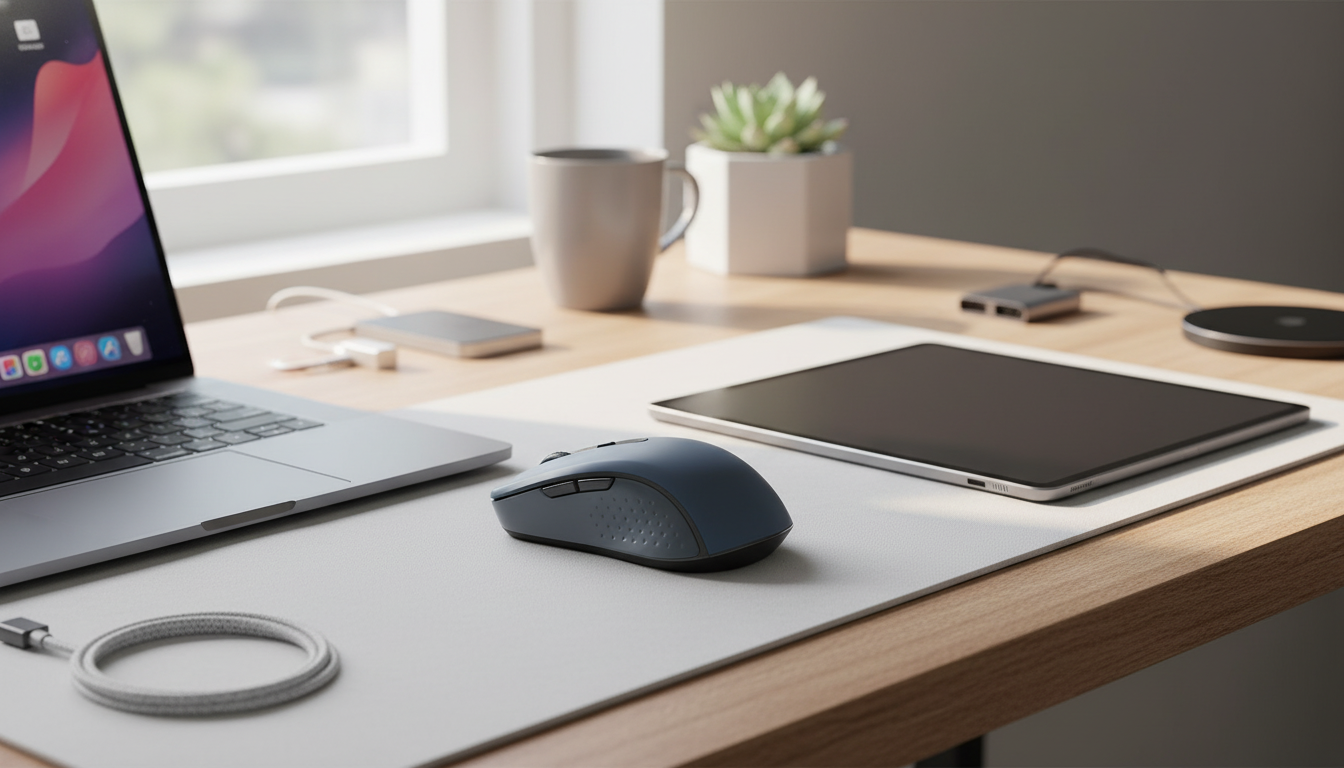
Wireless 2.4 GHz Ergonomic Gaming Mouse for Apple Devices
A comfortable grip, responsive tracking, and a stable wireless connection can make everyday Mac use and casual gaming feel smoother. This guide breaks down what to look for in a 2.4 GHz ergonomic mouse for Apple devices, how it typically connects, and how to set it up for reliable performance.
What a 2.4 GHz Wireless Mouse Means for Mac and iPad Setups
A 2.4 GHz wireless mouse typically connects through a small USB receiver (often called a “dongle”). Instead of pairing over Bluetooth, the mouse and receiver communicate over a dedicated link, which can feel steadier in environments where Bluetooth is busy (multiple devices, crowded offices, or shared workspaces).
This approach also keeps desks and travel setups cleaner by removing cable drag while still aiming for low latency that feels responsive for everyday navigation and casual gaming. The main trade-off is simple: you’ll need an available USB port for the receiver.
- Best fit for Macs with USB-A: plug the receiver in and go.
- USB-C–only Macs: a USB-C to USB-A adapter or hub is usually required.
- iPad support depends on connecting the receiver (often via USB-C) and enabling pointer settings in iPadOS.
Ergonomic Shape: Comfort for Longer Sessions
Ergonomics isn’t just about a “curvy” shell—it’s about how the mouse supports your hand over time. A contoured shape can help the palm rest naturally and reduce wrist extension, which matters if you’re switching between work tasks, browsing, and gaming in longer sessions.
Match the mouse to your grip
- Palm grip: usually feels best on a larger, higher-profile mouse that fills the hand.
- Claw grip: often benefits from a medium shape with a supportive rear hump.
- Fingertip grip: tends to favor smaller, lower-profile bodies for quick micro-movements.
Buttons and weight: small details that change the feel
Button placement should let you click (and hit side buttons) without shifting your hand. This is especially important for back/forward buttons and DPI switches, since accidental presses can break focus during fast navigation or gameplay. Weight is personal: a lighter mouse can reduce fatigue, while a slightly more substantial one can feel steadier for precise cursor control.
Performance Basics That Affect Gaming and Daily Use
Even for casual gaming, a mouse’s “feel” is shaped by a few practical specs and how they interact with macOS and your display.
- DPI (sensitivity): controls how far the cursor moves per inch of movement. Adjustable DPI helps you switch between precision work (photo edits, spreadsheets) and faster turns in games.
- Polling rate and sensor quality: influence responsiveness and tracking stability. On high-resolution monitors, stable tracking makes the cursor feel less “floaty.”
- Surface compatibility: many mice track best on a mousepad; reflective or glass surfaces can reduce accuracy.
- Extra buttons: can speed up common actions in macOS (back/forward in browsers, app switching) when mapped through supported settings or companion apps.
If you want a good baseline on adjusting mouse behavior on macOS, Apple’s official guide is a reliable reference: Apple Support: Change Mouse settings on Mac.
Compatibility and Setup on Apple Devices
Most 2.4 GHz receiver-based mice are plug-and-play on macOS for basic pointing and clicking—no extra driver required. The biggest setup question is simply which ports you have available.
Quick Compatibility Checklist
| Device | Receiver Connection | Typical Result | Notes |
|---|---|---|---|
| Mac with USB-A | Plug receiver into USB-A | Works immediately | Adjust tracking speed in System Settings |
| Mac with USB-C only | USB-C hub/adapter + USB receiver | Works immediately | Prefer a quality hub; avoid loose adapters |
| iPad with USB-C | USB receiver via USB-C adapter/hub | Often works | Enable pointer settings; confirm iPadOS support |
| Apple TV / other | Varies by model | Unreliable | Not a standard use case for 2.4 GHz receiver mice |
On iPadOS, you may need to enable pointer options and tune tracking speed to feel natural. Apple’s pointer and mouse guidance for iPad is a good starting point: Apple Support: Connect a Bluetooth mouse or trackpad to iPad.
Getting a Stable Connection: Tips for 2.4 GHz Reliability
For general wireless compliance and device authorization background in the U.S., the FCC’s equipment authorization resources are a helpful reference point: Federal Communications Commission (FCC) — Equipment Authorization.
Product Spotlight: Wireless 2.4 GHz Ergonomic Gaming Mouse for Apple Devices
If you want a straightforward receiver-based option for Apple setups, the Wireless 2.4 GHz Ergonomic Gaming Mouse for Apple Devices is designed to keep your hand in a more comfortable position while maintaining a responsive wireless feel through a dedicated 2.4 GHz connection.
More In-Stock Picks to Check Out
- Men’s Genuine Leather Cowboy Belt with Copper Buckle for Jeans
- Large Dog Slicker Brush & Comb Set for Doodles, Poodles and Long Coats
- Twin Size Upholstered Bed with LED Lights and Crown Headboard
Care, Cleaning, and Longevity
FAQ
Will a 2.4 GHz USB receiver mouse work on a USB-C MacBook?
Yes—typically with a USB-C to USB-A adapter or a USB-C hub that provides a USB-A port for the receiver. After connecting, adjust tracking speed in macOS if the cursor doesn’t feel right.
Is 2.4 GHz better than Bluetooth for gaming on a Mac?
It can be more consistent because it uses a dedicated receiver connection, which may feel steadier in busy wireless environments. Bluetooth is convenient, but it can be more sensitive to congestion depending on your setup.
Why is my wireless mouse lagging or stuttering on macOS?
Try moving the receiver to another port, using a short USB extension to bring the receiver closer, and checking battery power. Reducing nearby interference (including potential USB 3.0-related noise) can also help.
















Leave a comment