1080P 800 ANSI Projector Setup: WiFi 6 & Bluetooth 5.2
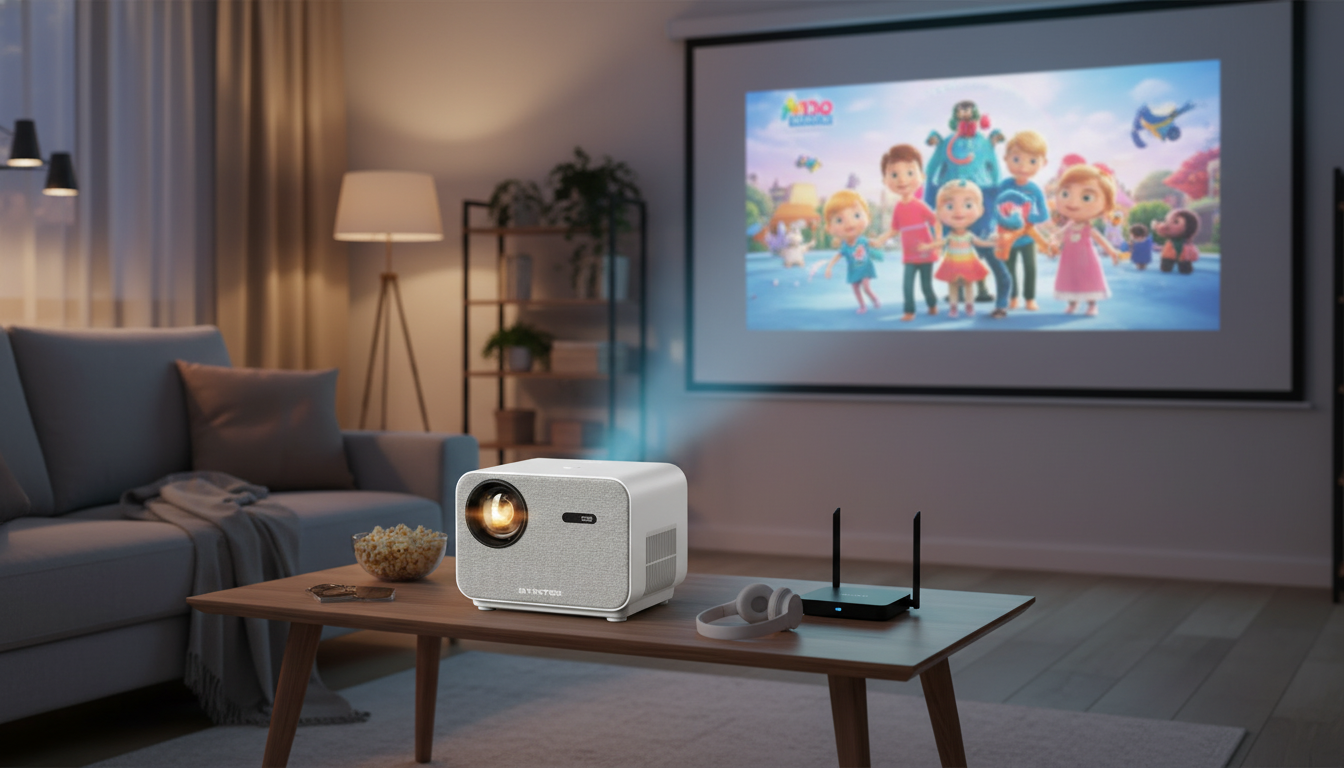
Full HD 1080P Home Theater Projector with 800 ANSI, WiFi6 & Bluetooth 5.2: Setup, Performance, and Everyday Use
A Full HD home theater projector can turn a living room, bedroom, or backyard wall into a big-screen experience—if brightness, focus, connectivity, and placement are handled correctly. This guide breaks down what to expect from a 1080P projector rated at 800 ANSI with WiFi 6 and Bluetooth 5.2, plus practical tips for getting a sharp, low-lag picture and reliable wireless audio.
What makes a projector feel “cinema-like” at home
Resolution and detail (why native 1080P matters)
With Full HD 1080P, fine details—like facial features, jersey numbers, and app menus—hold together better than lower-resolution projectors. Subtitles look cleaner, and streaming interfaces are easier to read from the couch, especially on larger screen sizes where lower resolutions can look soft.
Brightness and room lighting (ANSI ratings in real life)
ANSI brightness is a more useful reference than vague “lumens” claims because it’s measured in a standardized way. An 800 ANSI projector is typically most satisfying in dim-to-moderately lit rooms, where it can keep highlights from looking dull and preserve more contrast before full darkness.
Throw distance and screen size (placement drives results)
Big images are easy to love, but they’re also easier to wash out. If you push for the largest possible image in a room with light walls and windows, perceived contrast drops. A slightly smaller screen size—paired with controlled lighting—often looks more “premium” than a huge but faded picture.
Uniform focus and alignment (avoid soft corners)
During first setup, check that the projector is level and centered. Excessive keystone correction can make edges look less crisp, so aim for physical alignment first (stand height, shelf position, or mount) and use digital correction only as a light touch-up.
Key specs at a glance
For a simple, modern home setup, the combination of 1080P, 800 ANSI brightness, WiFi 6, and Bluetooth 5.2 is geared toward easy streaming, convenient casting, and flexible audio—without turning the room into a permanent theater build.
| Feature | What it means for daily use |
|---|---|
| Resolution | 1080P detail for sharper streaming, subtitles, and UI text |
| Brightness | 800 ANSI for a more watchable image before full darkness |
| Wireless | WiFi 6 for improved stability on compatible routers |
| Audio connectivity | Bluetooth 5.2 for flexible speaker/headphone pairing |
| Use case fit | Movies, TV, sports, presentations, and light gaming depending on latency and settings |
Picture performance: getting the sharpest 1080P image
Start with the right surface
A dedicated screen usually improves perceived contrast and sharpness compared with textured paint or orange-peel drywall. If a screen isn’t an option, choose the smoothest, flattest wall available and keep it clean and matte to reduce sparkly reflections.
Focus first, then correct geometry
Dial in focus while the projector is physically aligned and square to the wall/screen. After focus is crisp, make small angle adjustments and only then apply keystone if needed. The less digital correction you use, the more “native” detail remains on edges and in small text.
Use picture modes intentionally
Cinema/Movie modes often prioritize natural color and smoother gradients for nighttime viewing. Standard can work better with moderate ambient light. If a Game mode exists, it may reduce image processing to lower input delay—helpful for casual console play.
Streaming quality matters
Brightness and room setup: making 800 ANSI work for you
Pick the right lighting strategy
Consider screen gain carefully
Keep placement stable and cool
WiFi 6 streaming and casting: smoother playback with fewer dropouts
WiFi 6 (802.11ax) can be more efficient on busy networks, especially when many devices share the same router—though the biggest benefits show up when the router also supports WiFi 6. For an overview, see the Wi‑Fi Alliance’s Wi‑Fi 6 resource at wi-fi.org.
Bluetooth 5.2 audio: pairing speakers, soundbars, and headphones
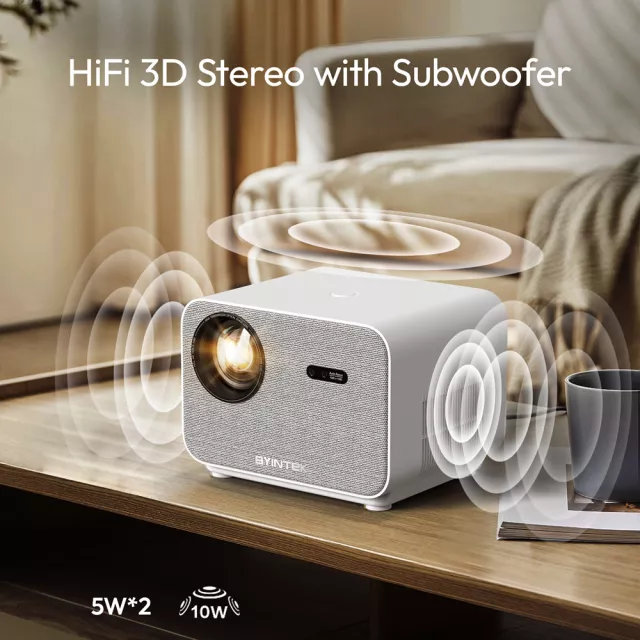
Built-in speakers are convenient, but external audio often makes the biggest perceived upgrade—clearer dialogue, fuller bass, and a more immersive soundstage. Bluetooth 5.2 can simplify that connection; for background on Bluetooth versions, reference the Bluetooth Core Specification overview at bluetooth.com.
Quick pairing checklist
Watch for lip-sync
Best sources: streaming sticks, consoles, laptops, and media players
Streaming sticks
Consoles and laptops
For the most stable performance, use HDMI and enable Game mode if available. Reliable HDMI handshakes also depend on cable quality—if you see occasional black screens or dropouts, try a different cable and confirm device settings. HDMI specification resources are available at hdmi.org.
Audio routing tip
Common issues and quick fixes
Recommended picks in stock
- Full HD 1080P Home Theater Projector with 800 ANSI, WiFi6 & Bluetooth 5.2 — a balanced option for big-screen movies and flexible wireless audio.
- Twin Size Upholstered Bed with LED Lights and Crown Headboard — a cozy bedroom pairing for a projector setup where you want comfortable, space-efficient viewing.
Who this projector is a strong fit for
FAQ
Is 800 ANSI bright enough for daytime viewing?
It can work in shaded rooms, but it performs best with controlled light. Close curtains, turn off overhead lights that hit the screen, and consider using a projector screen to improve perceived contrast.
Can Bluetooth headphones be used without noticeable audio delay?
Bluetooth may introduce latency, and results depend on the projector, headphones, and any low-latency modes available. If delay is distracting, use wired audio or connect headphones directly to the source device when possible.
Does WiFi 6 automatically make streaming smoother?
Not automatically—WiFi 6 helps most when you also have a WiFi 6 router and a reasonably strong signal. Use 5 GHz when available, keep the router closer, and test HDMI playback to confirm whether stuttering is network-related.














Leave a comment